
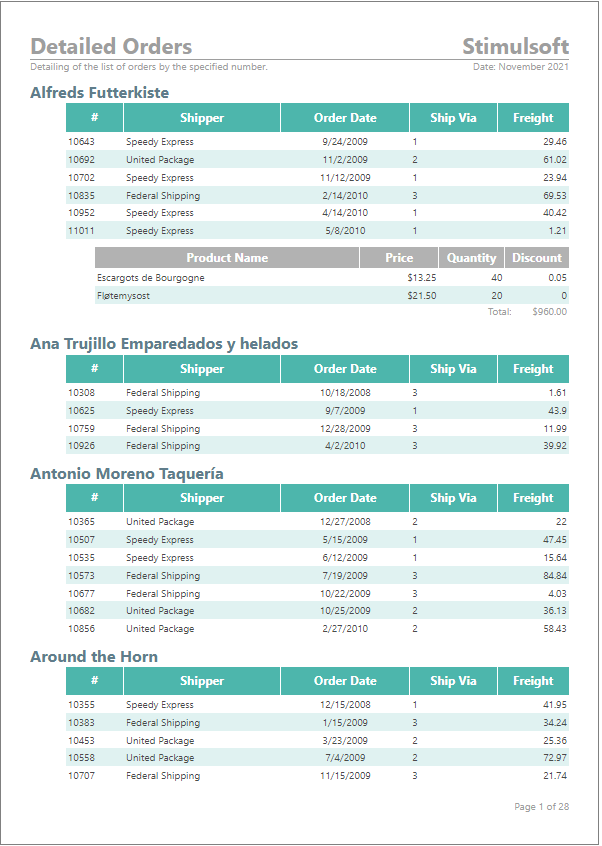
Tabidoo has a built-in Reporting feature from Stimulsoft that you can use to create handover reports, invoices, employee statements, and many other reports.
Our tip: With the reporting tool you can easily create contracts, invoices, and much more. Send them directly to the customer's email. You can find out how to send report emails here.
How do I create and set up the report?
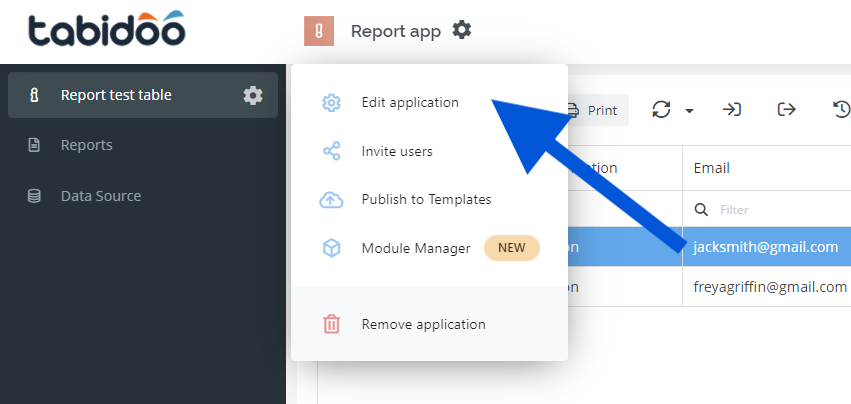
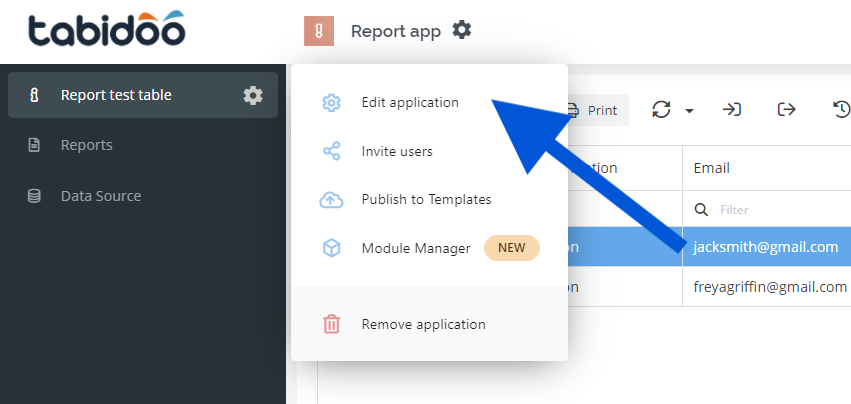
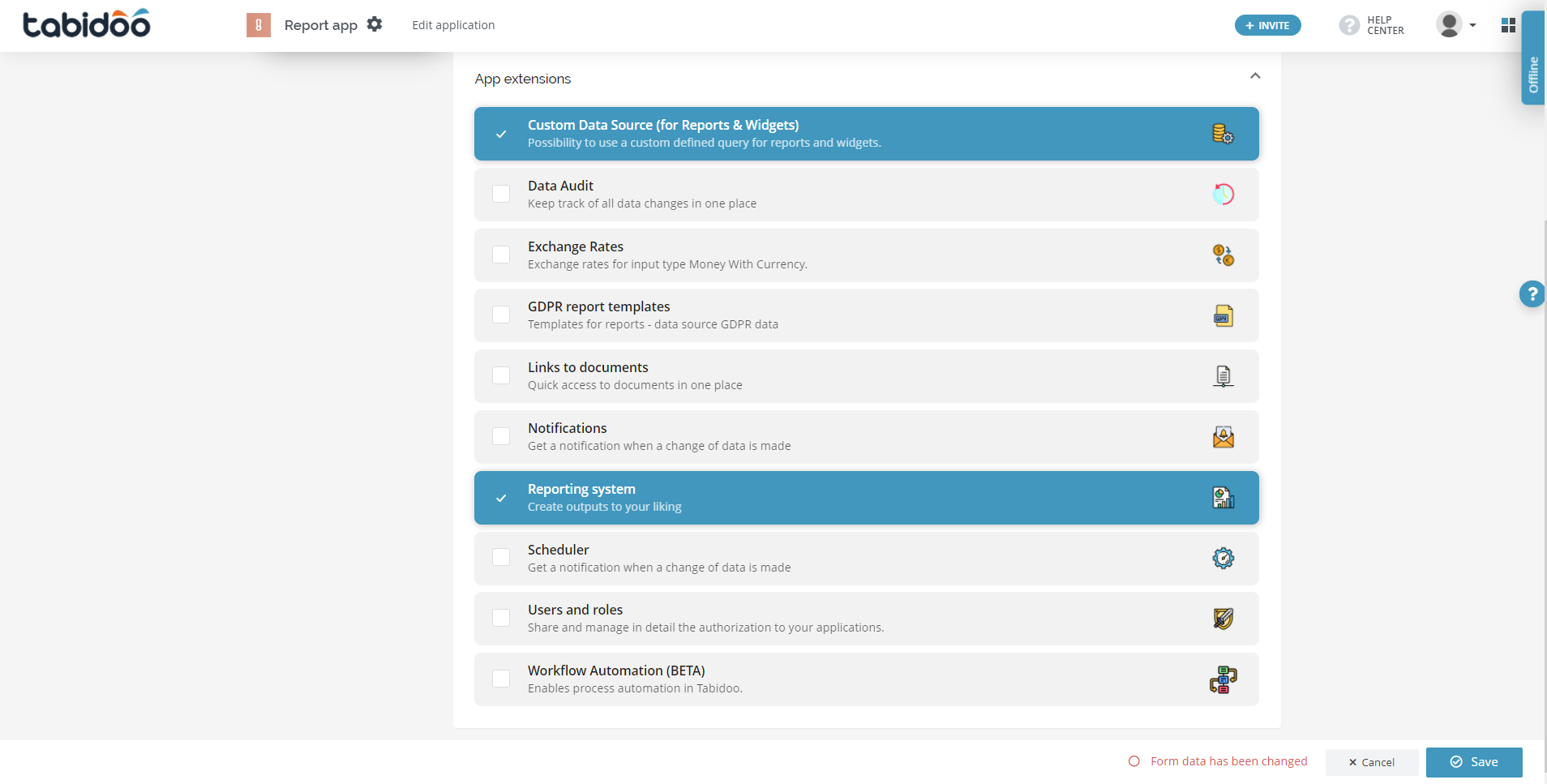
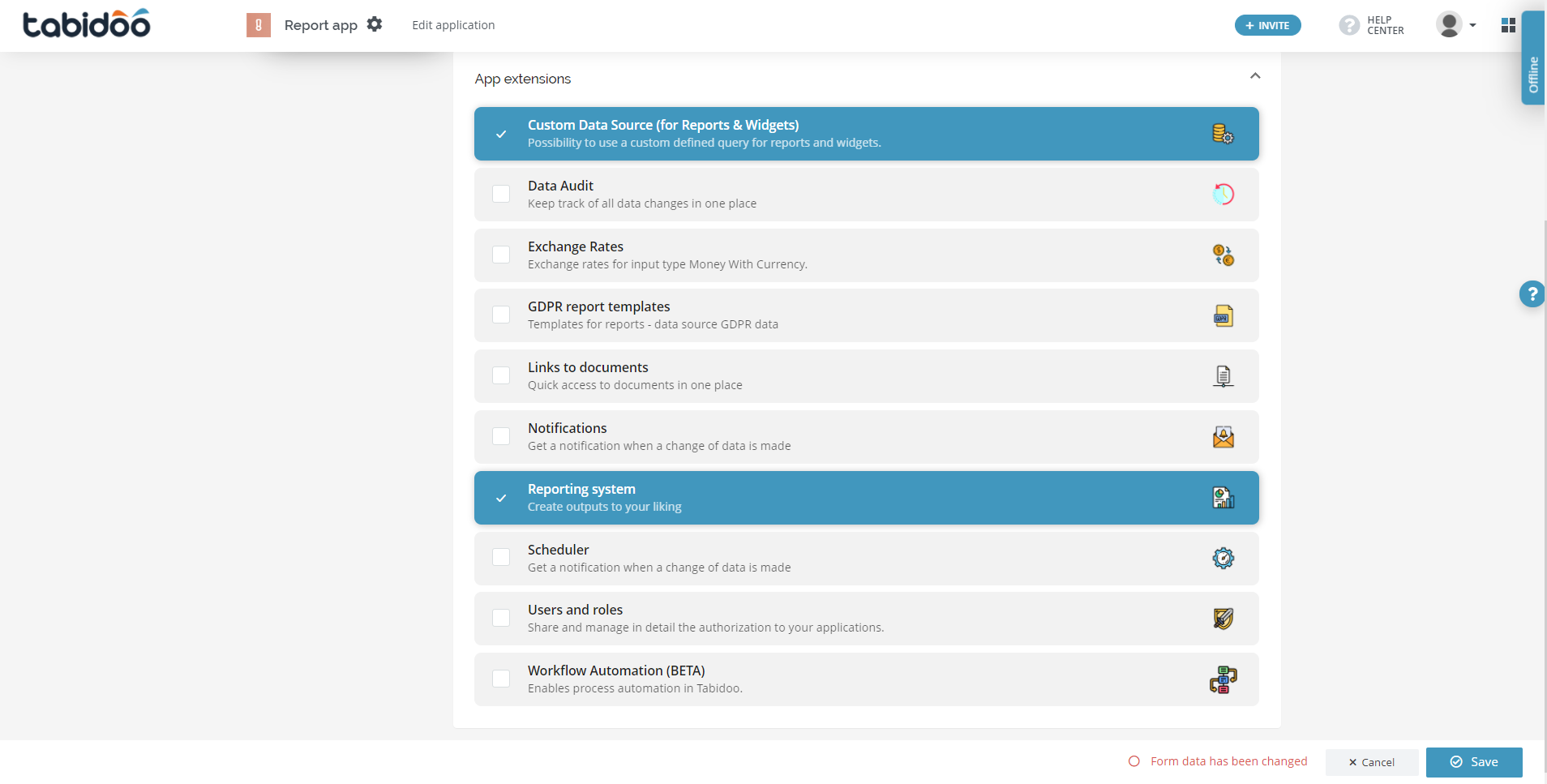
1. Click on the Gear icon > Edit application > App extensions
Choose Custom Data Source and Reporting system
The use of a data source is not essential to the creation of a report, but there are several undeniable advantages to using a data source. When working with a larger table that contains multiple table entries, it is much easier to use a data source to gather the data you need into a single data source and use it for the report you need. It is always possible to add table entries to a data source later and merge them with existing ones.
2. The use of a data source is not essential to the creation of a report, but there are several undeniable advantages to using a data source. When working with a larger table that contains multiple table entries, it is much easier to use a data source to gather the data you need into a single data source and use it for the report you need. It is always possible to add table entries to a data source later and merge them with existing ones.
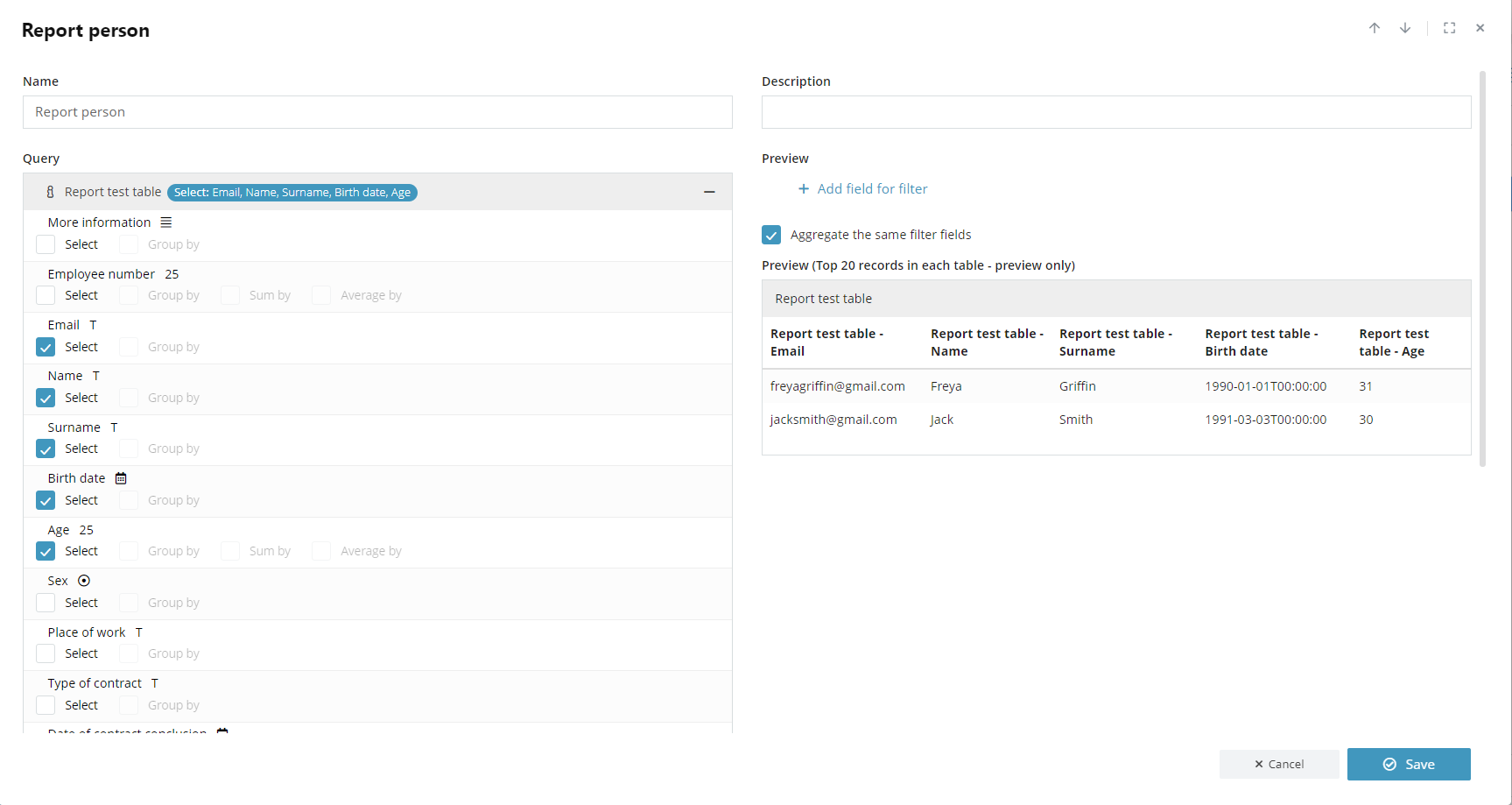
Move to the table Data source
Create a new data source, select the necessary data for a report
On the right side of the table
- Table description can be addedCreate your filter to sort data You can see a preview of the data that will go into the report
3. Navigate to the Reports table
Create new report
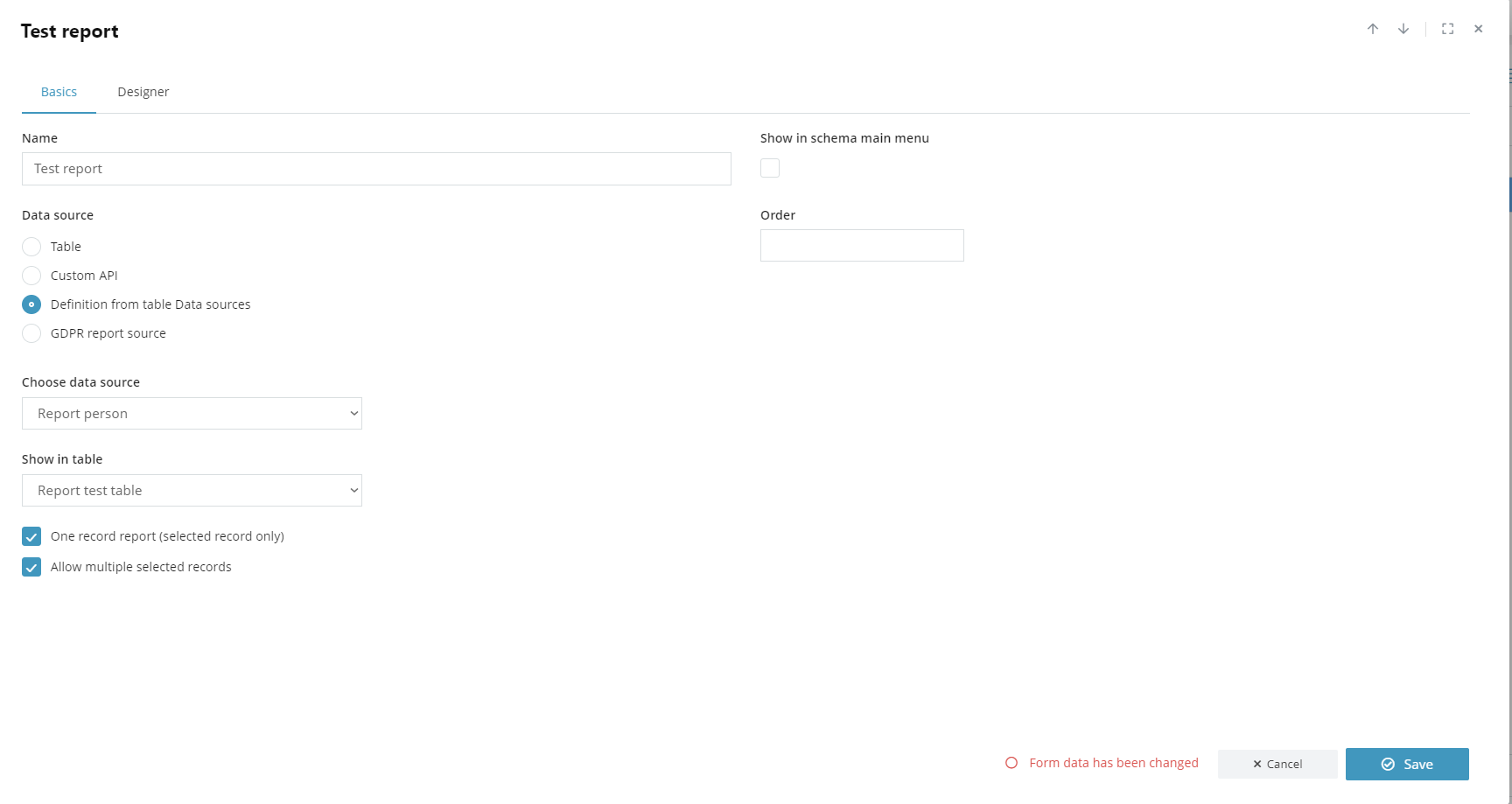
Select the data source you created and display the basics tab
In the table, you can
- Set nameChoose Data source
Table
Custom API
Definition from table Data sources
GDPR report source
Select all data from the table
Load data from custom API
Select the data of your choice, you can select data from multiple tables
GDPR
- Choose data source - possibility to select more sourcesShow in the table - select in which table the button to print the report should appearOne record report - allows quick printing of the selected row in the tableAllow multiple selected records - allows printing various lines at onceShow in schema main menu - displays the report button in the report tableOrder - determine the button order
How to use Stimulsoft
1. Navigate to the designer tab
The designer completely differs from other conventional tools such as Microsoft Word, LibreOffice, or Google Docs.
On the Stimulsoft website, you will find detailed documentation on all features. Alternatively, you can also use the official instructions from Tabidoo.
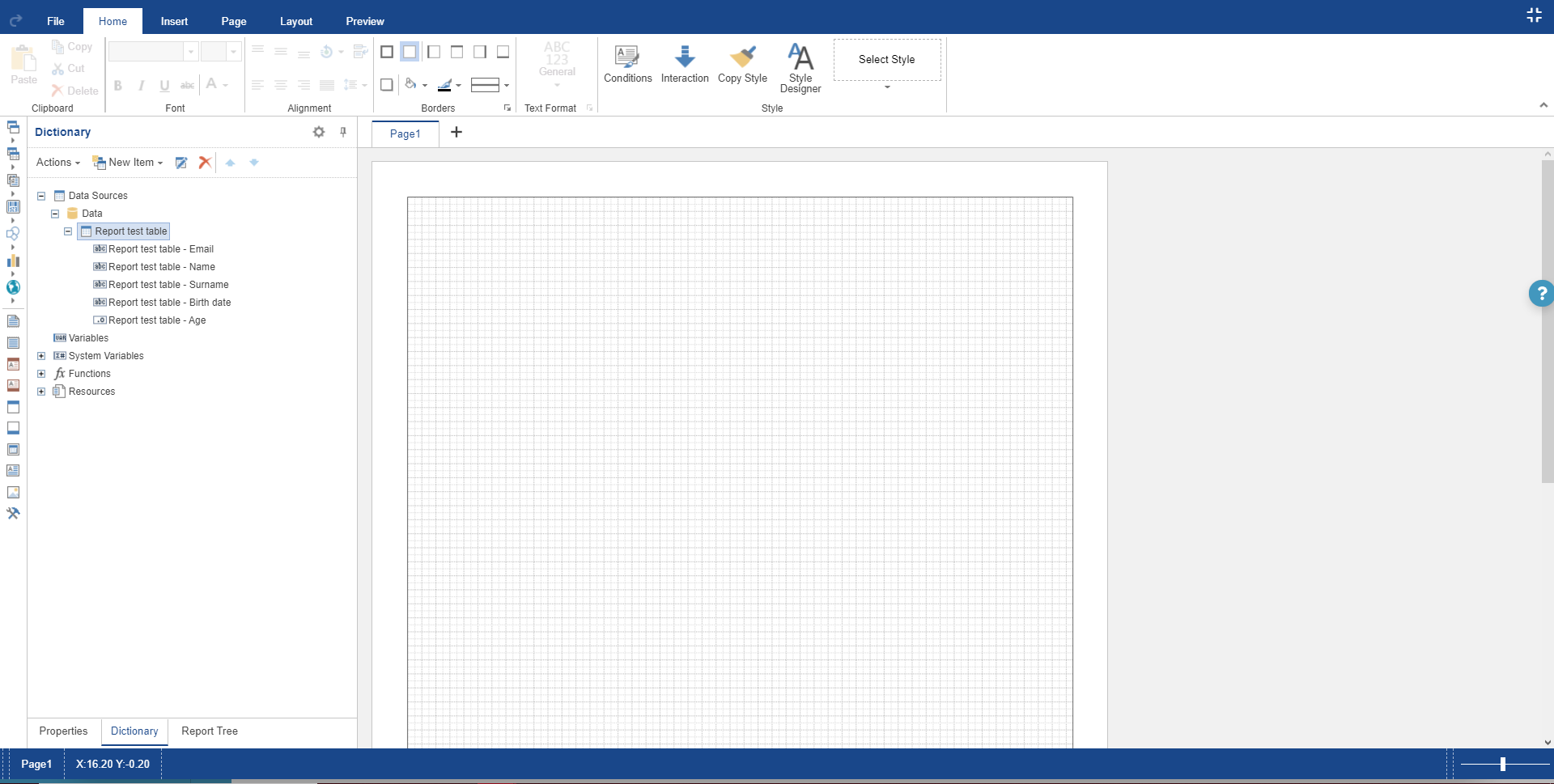
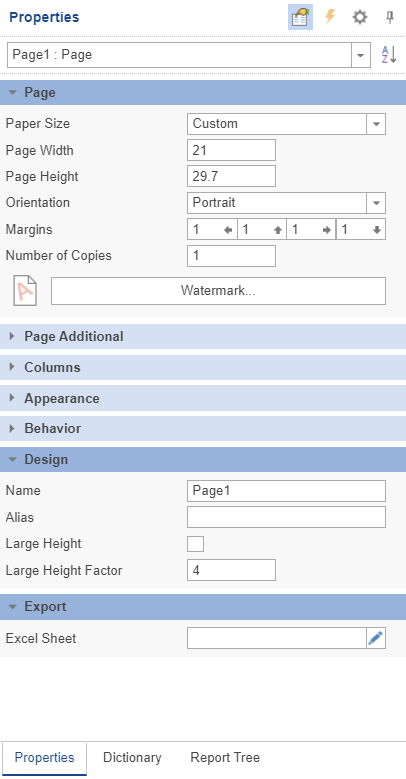
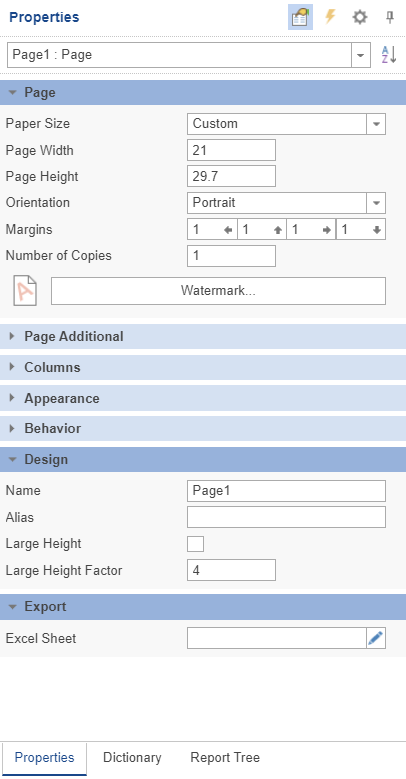
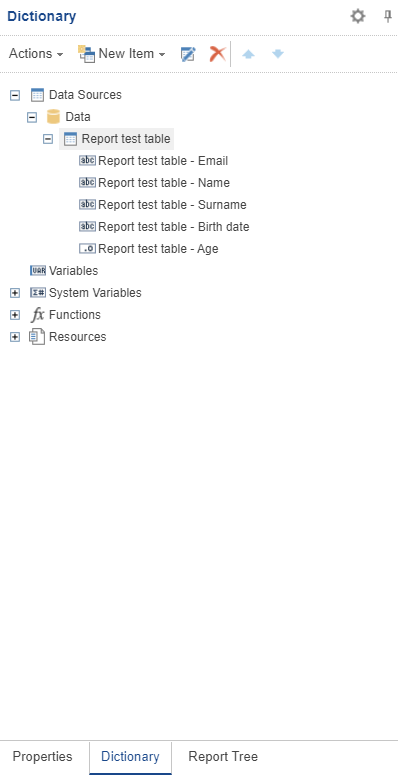
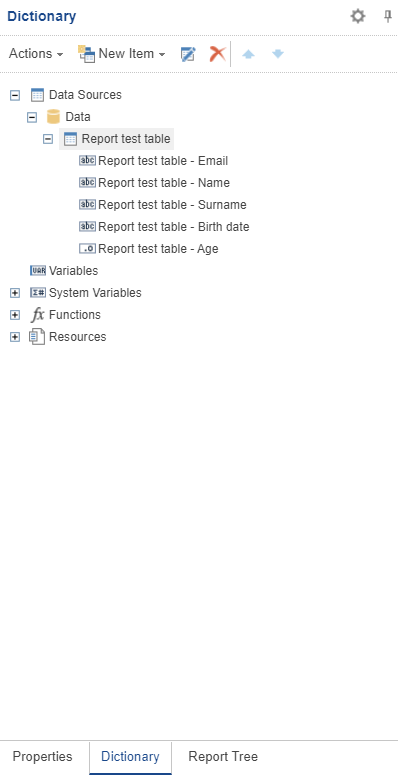
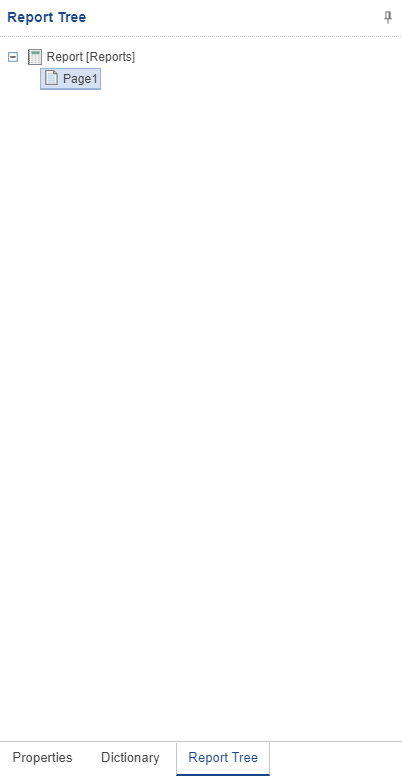
- The dictionary will display all the data sources and their individual entries that you can use in the reportIn the properties, you can set the page type, behavior, and appearance of individual pages or the whole reportThe report tree shows all parts of the report
For our report and text insertion, we will use the quick settings
- Report titleData
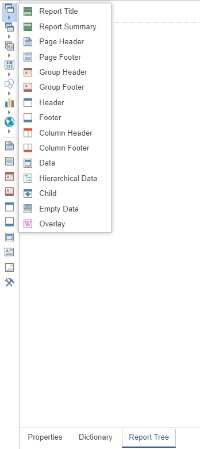
2. Add the Report title
Adding all Stimulsoft features works the same way. You can use the top bar to add/edit text, tables, and more
3. Insert data from a data source
After entering the data, you can edit the individual text fields in the header
You can also change the position of the data as needed and modify the appearance of the table
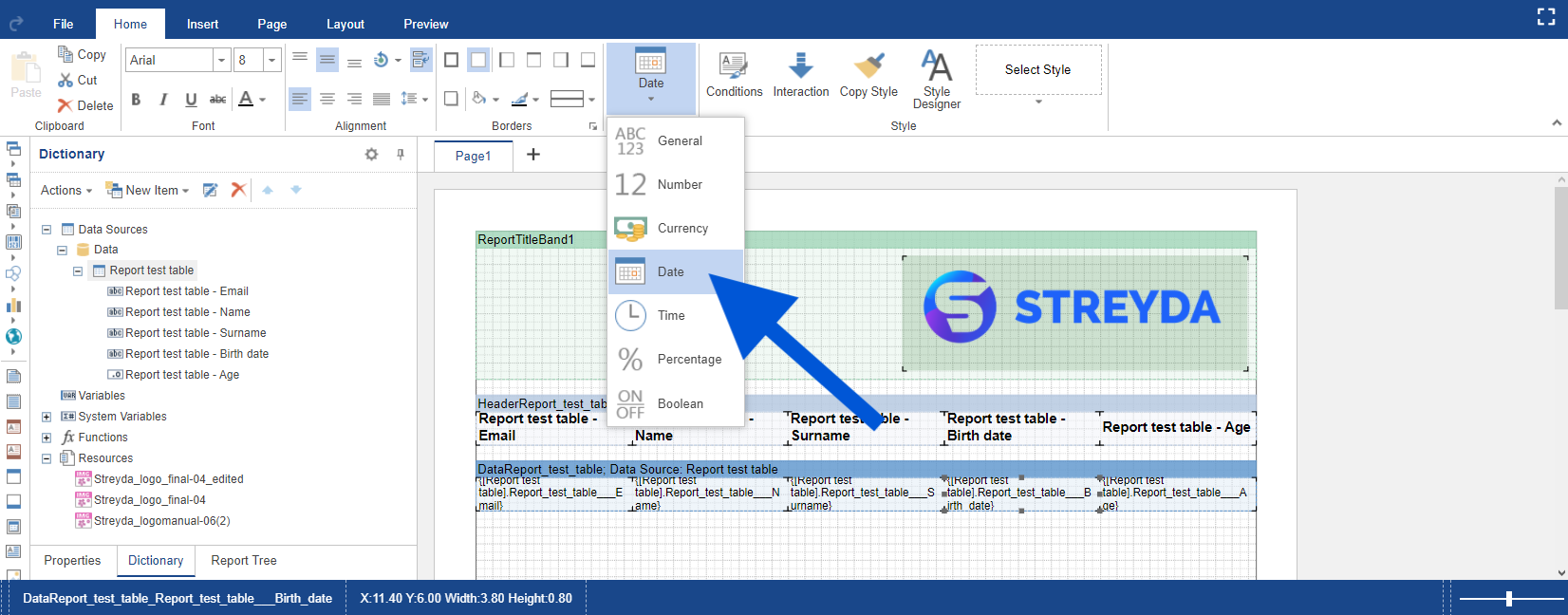
4. For a correct data dump, it is necessary to set the data correctly
- For example, for the date of birth, you must select the Date
5. Lastly all you have to do is check out the report