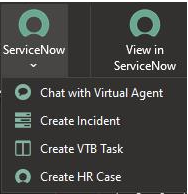
The ServiceNow Add-in for Microsoft Outlook feature lets you engage with IT directly from an email or, for IT users, quickly create an incident from an email and immediately assign it to the correct team. It also lets you create a VTB task by default. But there is no out-of-the-box possibility to Create HR Case, however, we can still add the functionality by configuration. This article is about the HR Case creation for MS outlook but the mentioned functionally could be used for almost every widget when the proper configuration is kept.
Activate the ServiceNow Add-in for Microsoft Outlook
You can activate the ServiceNow Add-in for Microsoft Outlook plugin (com.sn_outlook_addin) if you have the admin role
Before you begin
Role required: admin
Procedure
- Navigate to System Applications > All Available Applications > AllSearch for ServiceNow Add-in for Microsoft Outlook search bar.You can search for the plugin by its name or ID (com.sn_outlook_addin). Click Install, and then in the Activate Plugin dialog box, click Activate.
Procedure to Create HR Case Functionality in Add-in
- Navigate to sn_office_control.listClick New on the Office Controls pageFill as in the following code snippet and click Save
Label: Create HR Case Description: Create a HR Case in ServiceNow Type: MenuItem Relative URL: /sncoutlook?id=outlook_hr_case Parent Control: ServiceNow Manifest: ServiceNow for ITSM Icon URL(16x16):/images/outlook-addin/now16.png Icon URL(32x32):/images/outlook-addin/now32.png Icon URL(80x80):/images/outlook-addin/now80.png
*Manifest file could be a different or new one in case of dedicated HRSD Addin only for HRSD users eg.
4. Navigate to ServiceNow Add-In for Outlook > Office Add-In Manifests.
5. Click New on the Office Manifests page.
Procedure to Create HR Case Functionality in SNCOUTLOOK portal
Before you begin
Role required: admin, sn_outlook_addin.outlook_addin_setup
- Navigate to Service Portal > PagesSearch for *outlook in the ID column and open outlook_vtb recordClone Page with the title as "Outlook HR Case" in title and id as "outlook_hr_case"Scroll bottom to related links and click on Open in DesignerReplace the Create VTB Task widget with any widget you want to use and Save
Note: Be aware of scopes - the new page has to be in ServiceNow Add-In for Outlook scope
Deploy the ServiceNow Add-in for Microsoft Outlook
Deploy the ServiceNow add-in for Microsoft Outlook to chat with a virtual agent, create incidents and VTB tasks from within the Microsoft Outlook.
Before you begin In addition to having one of the following roles on the ServiceNow instance, you must be an Office365 administrator to deploy the ServiceNow add-in.
Role required: admin, sn_outlook_addin.outlook_addin_setup
About this task
Deploy the ServiceNow add-in to Microsoft Outlook using the instructions in this Microsoft article: Publish Office Add-ins using Centralized Deployment via the Office 365 admin center
Procedure
- Navigate to ServiceNow Add-Ins for Office > Office Add-In Manifests.Click New on the Office Manifests page.Fill in the form fields and click Submit.Click Download Manifest to download the add-in manifest file and follow the instructions in the Microsoft article for deployment.
Results
On the Microsoft Outlook Home tab, click the ServiceNow icon and select Create HR Case.